
What Can You Find with Seeker?
Seeker lets you search the library’s collection of books and e-books, as well as a large variety of other academic material: scholarly articles, theses, reports, conference papers, and more.
Seeker is a great starting point when you want to explore a subject area, but searching in discipline-specific databases often gives more precise results. If you’re unsure, don’t hesitate to ask library staff for help.
Tip! You find other databases through the database list or in our subject guides.
Searching and Common Filters
In the search box on the library’s homepage, you can search for titles, author names, or keywords.
Filters can help you to quickly narrow down your results to what is most relevant for your assignment. Once you’re in the search interface you’ll see some of the most useful filters directly under the search box.

- Full Text limits results to material the library provides full-text access to.
- Scholarly (Peer Reviewed) Journals restricts results to publications from peer reivewed journals.
- All dates lets you set the years or dates you want to focus your search on.
- Source type allows you to limit to certain publication types.
You find more filters under All Filters. For example Available in Library Collection, which shows items that the library have access to, either digitally or in print.
Tip! The search service is provided by EBSCO. For more practical tips on how to search, we recommend their Quick Start Guide.
Natural Language Search
If you activate the AI-powered Natural Language Search feature, you can search using full questions or everyday language. After searching, you can click Show Refined Query to see which search terms were used. This can be helpful when you’re unsure which keywords to use.
Tip! You find more on how AI can help you with the search process on our page Information Searching and AI. Remember that you are always responsible for finding out which rules apply to the use of AI in your specific course and for the assignment you are working on.
Sign In for Access and More Features
Sign In for Access
To access the full texts available through the university, you need to sign in as a student or staff member. If you are not automatically recognized, click the link in the grey box at the top of the page in the search interface.

Sign in for More Features
When you are in the search interface, you can sign in to MyEBSCO. This lets you save searches and publications. You can also set up alerts for searches or journals.
The login is located in the upper-right corner. The first time you sign in, you need to create a new account; you cannot use your university login.
Read more about how to create an account.
Tip! Do you already have an EBSCO account? You can merge your accounts for the EBSCO databases and Seeker, allowing you to keep everything you’ve saved in one single place. Instructions can be found here: How to Merge Personal User Accounts.
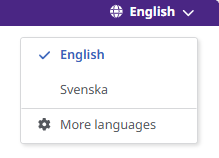
Change language
You can choose the interface language in the upper-right corner.
Frequently Asked Questions
Does Seeker search “everything”?
No. Seeker searches the library catalog, many subscribed databases, and some open access resources. It doesn’t cover all the databases the library has access to.
Why do I see articles I can’t immediately access?
Seeker may show items that the library doesn’t have digital full-text access for. In many cases you can request them, or ask the library for help obtaining them.
Is Seeker the same as Google or Google Scholar?
No. Seeker is not a web search engine. It is designed for university-level studies and shows material that the library provides access to or can help you obtain.
When should I use other databases?
For larger projects or subject-specific searches, discipline-focused databases usually deliver more targeted results.
Can I get help with searching?
Yes! The library can help you with developing search strategies, finding relevant databases, refining searches, and managing references.